Answer · · 3 min read
How to stop typing tasks from meetings
You finish the meeting. The action items are clear. Then somebody, usually you, has to type them into Linear, Jira, or Asana so they actually exist in the team's plan. Here is how to stop doing that: capture from meetings, structured extraction, agent-proposed mutations, and two-way sync.
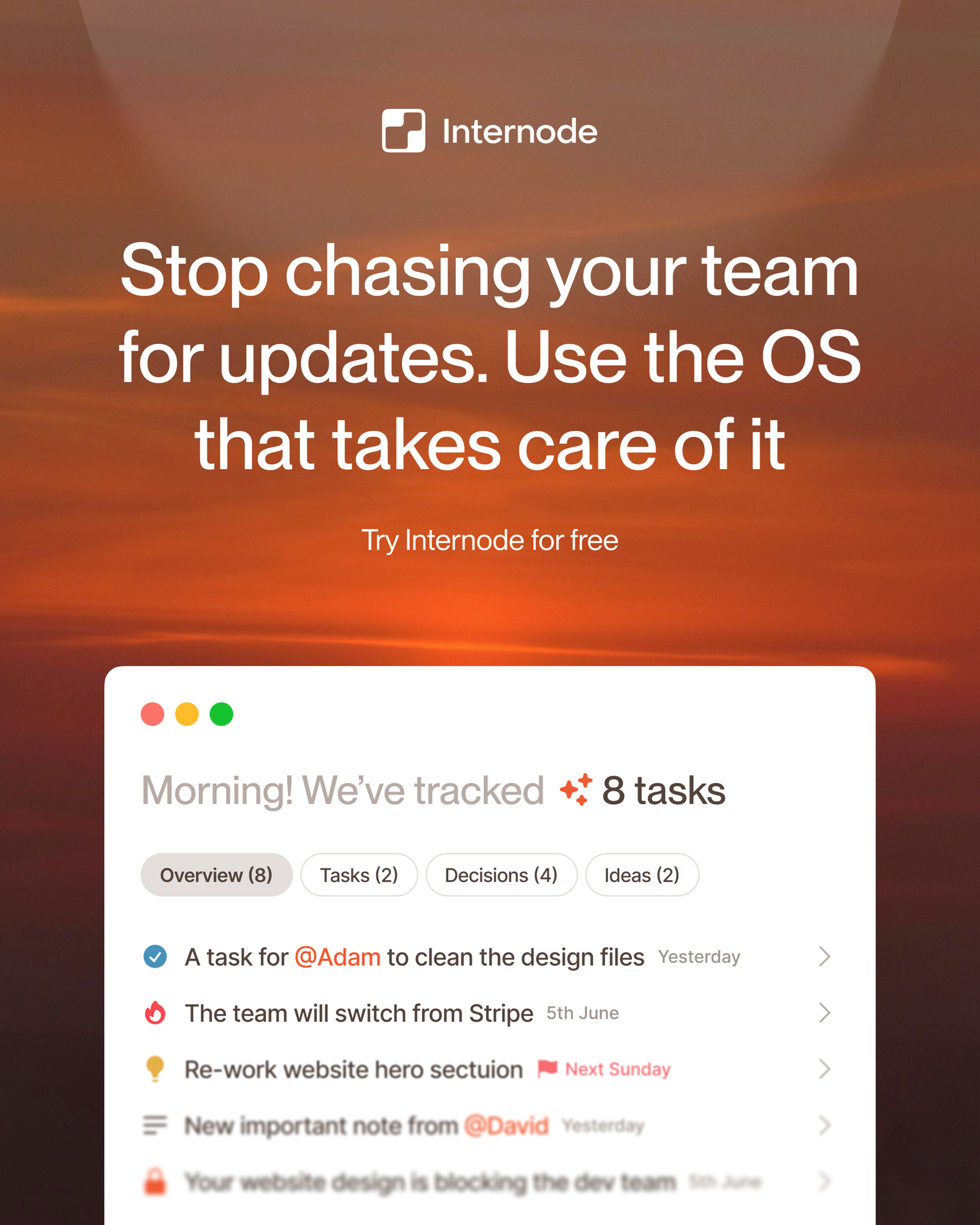
You finish the meeting. The action items are clear. Then somebody, usually you, has to type them into Linear, Jira, or Asana so they actually exist in the team’s plan. The meeting ends at 3:00 and the typing takes until 3:30. The next meeting starts at 3:30.
This is a four-change problem. Each change closes one loop that currently requires a human typist. Fix all four and the retype habit goes away.
What happens today
The meeting produces a transcript (from Zoom, Google Meet, or a tool like Granola). The transcript has an action items section at the bottom. The action items are a bulleted list. The list lives inside the meeting record.
Getting from that list into the team’s backlog is a human job. The PM or team lead opens Linear, creates each ticket, sets assignees, and pastes a description. Sometimes they drop a link to the recording. Usually the rationale, the decision, and the scope constraints from the conversation get lost. A week later a new engineer asks why the ticket exists and there is no answer that does not require reconstructing context from memory.
Change 1: capture from the meeting, not after it
The first fix is to stop treating the transcript as the handoff. A capture-first tool reads the transcript while the meeting is still running and produces real tasks instead of bulleted notes. Each task has a status, a priority, an assignee, a due date, and a link to the exact moment in the transcript that created it.
The distinction matters. A bullet is a string of text. A task is something the backlog can consume. You can reassign it, move it between projects, or close it as stale without opening a doc.
Change 2: structured extraction, not summary
The second fix is to extract structure, not prose. Most meeting-notes tools output a summary. A summary is nice to read once and useless to act on.
A real capture flow produces four kinds of record on every meeting: tasks, decisions, topics, and goals. The decision that produced a task links to the task. A new discussion that updates a previous decision links to the earlier one. A task that blocks another task links to it. You can query that record. You cannot query a summary. For the underlying model, see what an AI PM agent actually is.
Change 3: agent-proposed changes, not manual edits
The third fix is to hand the clicks to an agent. Once capture and extraction work, the backlog is always slightly out of shape: duplicate tasks across two meetings, a priority shift the team agreed to on Slack, a reshuffle after leadership approves a new plan.
An AI agent with access to the team’s record can fix this in bulk. A prompt like “move all tasks tagged auth-cleanup from design to platform and set priority to high” becomes one approval card covering dozens of tasks. In Internode the agent can change a field across many tasks at once, move a batch between projects, reassign a set to a different team, or archive a group together, all in a single approval. The human approves once. The agent applies the change across every affected task.
Combined changes go one step further. In one approval, Internode can write a decision, the tasks that follow from it, the topic it belongs to, and the goal behind it. That one step replaces six open browser tabs and twenty minutes of typing.
Change 4: two-way sync into the tracker you already use
The fourth fix is to keep the engineers in the tracker they know. Internode syncs tasks both directions with Linear and Jira. Tasks captured from a Zoom call appear in Linear with the decision reference attached. A status change in Linear flows back into Internode so the decision timeline stays accurate. The engineer never leaves Linear. The PM stops acting as a relay between tools.
For the practical link between decisions and tickets in your tracker, see how to connect meeting decisions to project tasks.
What the day looks like after
You finish the meeting at 3:00. The proposed tasks appear by 3:00:30 as a single approval card. You read them, click approve, and move on to the next thing. Over a week, that frees roughly three hours for the PM and about the same for each team lead running multiple meetings. Those hours are the actual reason to do this, not the tool review.
For the direct ICP-search version of this argument, see an AI PM that captures tasks from meetings. To try it on your next standup, go to app.internode.ai.
Related pages
- An AI PM that captures tasks from meetings
An AI PM that captures tasks from meetings should produce real tasks linked to the moment in the meeting they came from, not bullet lists inside a transcript. Each task carries the decision that created it, the person who owns it, and the source conversation. Internode does this automatically and syncs the result into Linear or Jira.
- AI PM agent: what it actually is and what to demand from one
An AI PM agent is a project manager that lives between your meetings, your chat, and your task tool. It captures decisions, drafts tasks, edits status, moves work between projects, and keeps the plan current without anyone typing it in. Most products marketed as 'AI PM' do not do this.
- How to connect meeting decisions to project tasks
You connect meeting decisions to project tasks by extracting structured decisions from transcripts and linking them to issues in your tracker. The result is bidirectional traceability: from any ticket you can reach the decision, and from any decision you can see the work it spawned.
Next step
If this topic is relevant to your team, continue on the main site or explore the product directly.